How the Web Works
-
This lesson explains how the web works from the moment you type a URL to how a website appears in your browser, covering browsers, servers, DNS, and HTTP basics.
What is the Internet ?
The Internet is a global network that connects millions of computers, phones, and devices so they can share information and exchange data with each other.
It is made of many connected networks, linked together using routers, switches, and communication cables.
How the Internet Works
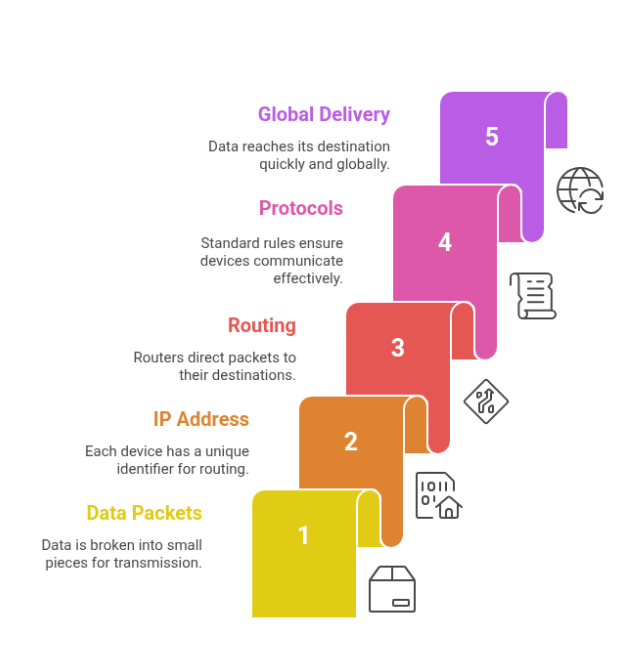
Data on the internet travels in tiny pieces called packets.
Every device on the internet has a unique IP address (like a home address).
This IP address tells the packets where to go.
The Internet uses common rules called protocols (like HTTP, TCP/IP) so that all devices can understand each other.
Simple Analogy
Think of the Internet like a huge postal system:
Packets = letters
IP address = postal address
Routers = post offices that forward the letters
Cables/WiFi = roads that carry the letters
the Internet delivers data from one device to another—quickly and globally.
What is a Website ?
A website is a collection of HTML, CSS, JavaScript, and image files stored on a server and sent to a user's browser when they visit it.A website lives on one or more servers.
When you type a URL, your browser sends a request to the server.
The server responds with HTML (the main structure of the page).
Your browser then builds, renders, and displays the final webpage you see on the screen.
After receiving HTML, the browser automatically requests additional files like:
CSS (for design and styling)
JavaScript (for interactivity)
Images (photos, icons, graphics)
Website vs Web Application
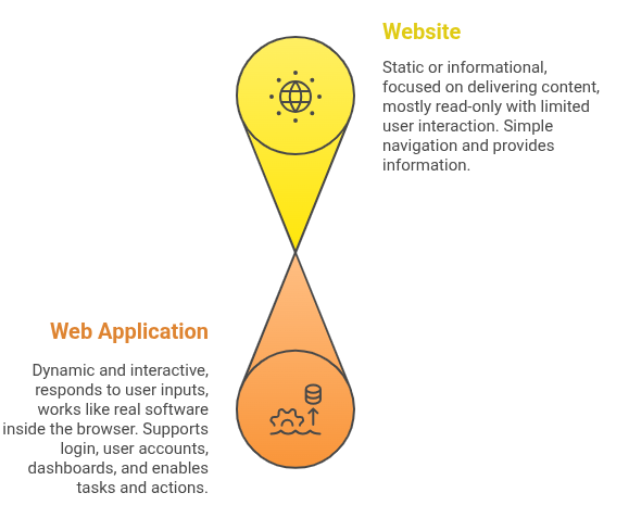
Although both websites and web applications run in a browser, they are not the same.
Website
A website is usually:
Static or informational
Focused on delivering content
Mostly read-only
Limited user interaction
Simple navigation
Purpose: Provide information
Examples of Websites:
Blogs
News sites
Portfolio sites
Company info pages
Online documentation pages
Web Application
A web application is:
Dynamic and interactive
Responds to user inputs
Works like real software inside the browser
Usually supports login, user accounts, dashboards
Allows users to perform actions (create, edit, buy, upload, etc.)
Purpose: Enable tasks and actions
Examples of Web Applications:
Gmail (email app)
Instagram Web (photo sharing + messaging)
YouTube (uploading, commenting, interacting)
Amazon (shopping cart, checkout, orders)
Google Docs (document editing)
Client–Server Model
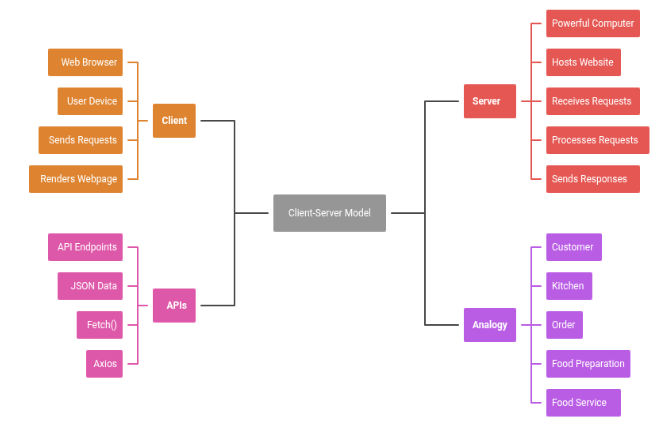
The Client–Server Model is a way of communication where a client (browser/device) requests something and a server sends the response.
Client (User Side)
Usually a web browser like Chrome, Firefox, Safari, or Edge.
Runs on the user’s device (mobile, laptop, PC).
Sends requests to the server.
Renders and displays the webpage to the user.
Server (Backend Side)
A powerful computer that hosts the website or application.
Receives requests from the client.
Processes the request.
Sends responses like:
HTML
CSS
JavaScript
JSON
Images
How It Works
Client sends a request
Server processes
Server sends a response
Client displays the content
👉 This loop continues for each click, search, or page load.
APIs (Data Sharing Method)
Servers expose API endpoints.
These endpoints return JSON data.
Frontend uses tools like:
fetch()
axios
Client then displays the retrieved data on the webpage.
Analogy
Client = Restaurant customer
Server = Kitchen
Customer gives order (request)
Kitchen prepares food (processing)
What Happens When You Type a URL and Press Enter ?
URL parsing:
Browser breaks the URL into parts: protocol, host, port, path, query, fragment.
Example: https://www.example.com:443/path?x=1#top
Cache check:
Browser checks local cache and service workers to see if the page or resources were recently stored.
DNS lookup:
Browser finds the IP address for www.example.com using:
Browser cache
OS DNS cache
Router cache
External DNS server
TCP handshake:
Browser opens a TCP connection to the server’s IP and port.
Uses the 3-way handshake: SYN → SYN-ACK → ACK.
TLS handshake (only for HTTPS):
Browser and server establish a secure connection.
They agree on encryption keys.
HTTP request:
Browser sends an HTTP request with:
Method (GET/POST)
Headers
Cookies
Server processing:
Server receives the request.
Runs backend code if needed.
Generates a response (HTML, headers, status code, body).
HTTP response:
Server sends the response back to the browser over the same connection.
Browser processes the response:
Browser reads headers and body.
If HTML, it starts parsing.
If response is a redirect, browser follows the new URL.
Resource loading:
Browser scans HTML and requests additional files:
CSS
JavaScript
Images
Fonts
These may repeat DNS, TCP, TLS steps if needed.
Rendering:
Browser builds:
DOM (from HTML)
CSSOM (from CSS)
Render tree
Performs layout and paint to display the page.
Page lifecycle events:
DOMContentLoaded fires when DOM is ready.
load fires when all resources finish loading.
Keep-alive / connection close:
TCP connection might stay open for future requests (keep-alive)
Or it may be closed.
DNS Explained
What DNS Does
DNS (Domain Name System) converts human-friendly domain names like:
google.com
instagram.com
amazon.in
into machine-friendly IP addresses like:
142.250.72.14 (IPv4)
2404:6800:4004:824::200e (IPv6)
👉 DNS is the Internet’s phonebook.
It helps your browser find the correct server.How DNS Lookup Works (Basic Flow)
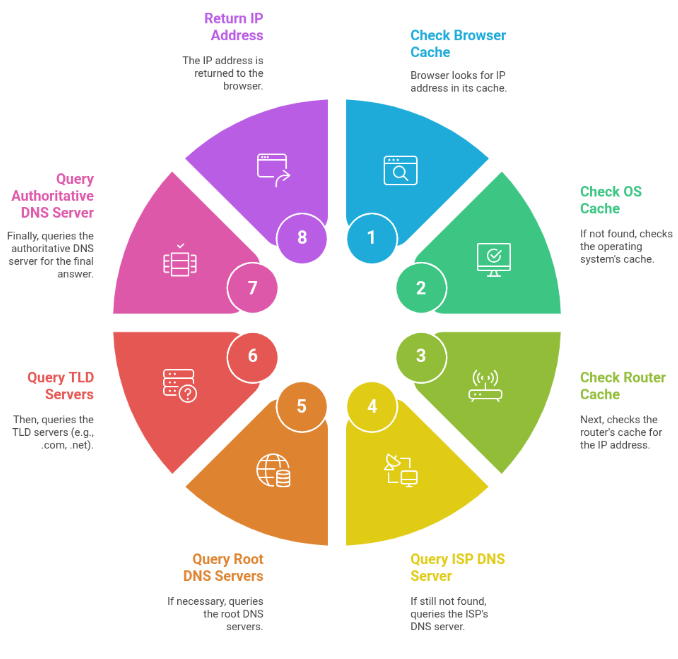
When you type a URL, the browser looks for the IP address by checking:
Browser cache
Operating System (OS) cache
Router cache
ISP DNS server
Root DNS servers
TLD servers (.com, .net, .org)
Authoritative DNS server (final answer)
👉 Once found, the IP address is returned to the browser.
Types of DNS Records
A Record → Maps a domain to an IPv4 address
AAAA Record → Maps a domain to an IPv6 address
CNAME Record → Creates an alias pointing to another domain
MX Record → Specifies mail servers for email delivery
These records tell the internet how to handle different types of requests.
Why DNS Matters
DNS is required before a webpage can load.
If DNS is slow, page loading is slow.
If DNS fails, the page cannot load at all.
It is a critical system for browsing the internet.
HTTP vs HTTPS
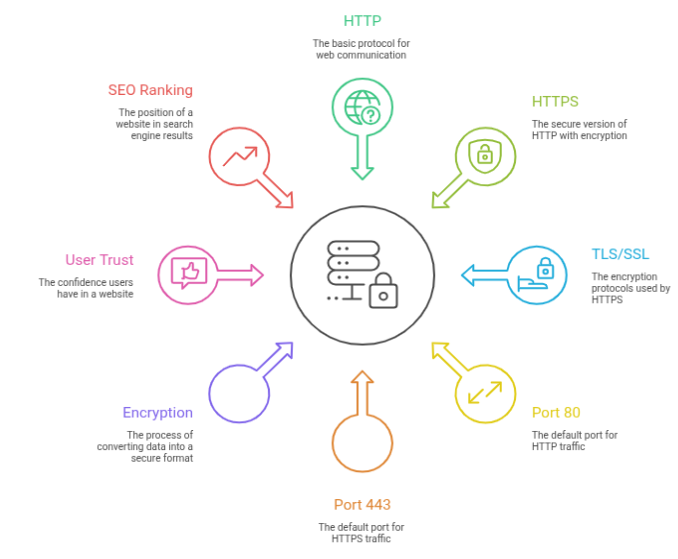
HTTP (HyperText Transfer Protocol)
Unencrypted communication
Data is sent in plain text
Uses port 80 by default
Not secure — attackers can read or modify data
Best for: simple, non-sensitive data (but rarely used alone today)
HTTPS (HTTP Secure)
HTTP over TLS/SSL
Data is encrypted
Protects against snooping, tampering, and attacks
Uses port 443
Required for secure features like:
Geolocation
Service workers
HTTP/2
Push notifications
👉 HTTPS = secure, trusted, modern browsing
TLS Handshake (High-Level Flow)
Client Hello — browser says “I want to connect securely”
Server Hello — server responds and shares supported settings
Certificate Exchange — server sends SSL certificate
Key Agreement — both sides agree on encryption keys
Secure Channel Established — encrypted communication begins
Why Use HTTPS ?
Protects data from hackers and secret listeners
Ensures privacy, integrity, and authenticity
Needed for many modern web features
Improves user trust (padlock icon in browser)
Boosts SEO ranking (Google favors HTTPS sites)
Prevents “Not Secure” warnings in browsers
HTTP Basics: Requests, Responses, Headers, Status Codes
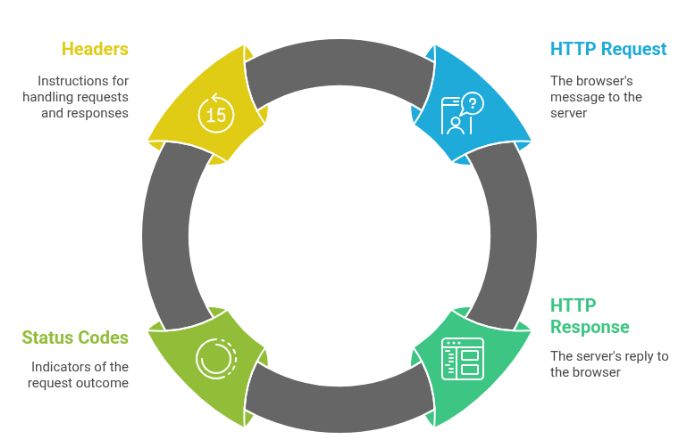
HTTP Request (What the browser sends)
A request contains:
Method:
GET
POST
PUT
DELETE
URL: The address of the resource.
Headers:
User-Agent
Accept
Cookie
Content-Type
Body (optional):
=> Used in methods like POST/PUT to send data (form data, JSON, etc.)
HTTP Response (What the server returns)
A response contains:
Status Code: 200, 404, 500, etc.
Headers:
Content-Type
Cache-Control
Set-Cookie
Body:
HTML
JSON
Images
Text
Important Status Codes (Easy & Colorful)
200 OK — Request was successful
301 / 302 Redirect — Resource moved to another URL
404 Not Found — Page doesn’t exist
500 Server Error — Server crashed or failed
401 Unauthorized — User needs to log in
403 Forbidden — User has no permission
Headers (What they do)
Headers control how the browser and server behave:
Content-Type → tells what type of data (HTML, JSON, image)
Cache-Control → controls caching
CORS headers → allow or block cross-origin requests
Cookie headers → send or set cookies
Content-Length → size of the response
Browser Rendering Process
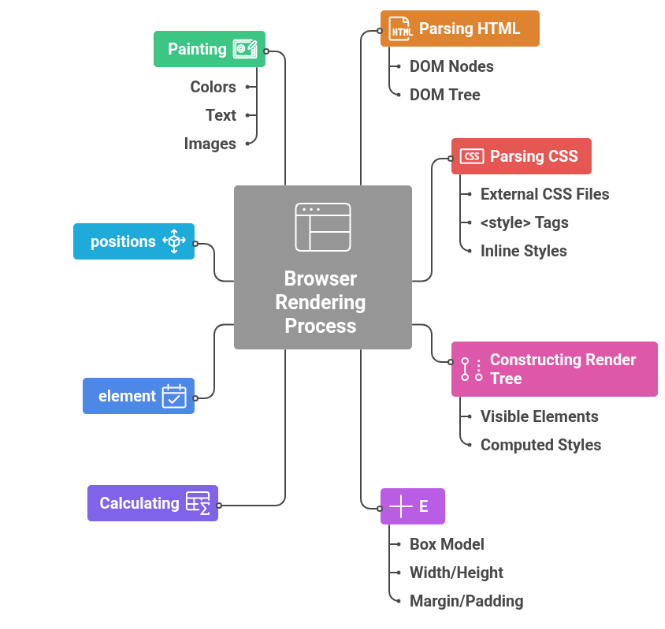
When the browser receives HTML, it goes through several steps to turn raw text into the visual webpage you see on the screen.
Parsing HTML → Building the DOM (Document Object Model)
Browser reads HTML from top to bottom.
It converts HTML tags into DOM nodes.
These nodes form a DOM Tree representing all elements like:
<div>
<h1>
<p>
<img>
👉 DOM = Structure of the page
arsing CSS → Building the CSSOM (CSS Object Model)
Browser loads all CSS sources:
External CSS files
<style> tags
Inline styles
CSS rules are parsed into a CSSOM Tree.
This includes information like colors, fonts, display, layout, etc.
👉 CSSOM = All styling rules
Constructing the Render Tree
Browser combines the DOM + CSSOM to create the Render Tree.
Render Tree contains only visible elements.
Elements with display: none are skipped.
Each node has computed styles (final applied styles).
👉 Render Tree = What will actually appear on screen
🔹 Layout (Reflow)
Browser calculates the size, position, and geometry of each element.
Determines:
Box model
Width/height
Margin/padding
Screen placement
👉 Layout = Where everything should be placed.
Painting
Browser paints pixels onto the screen.
It draws:
Colors
Text
Borders
Images
Shadows
👉 Painting = Drawing elements visually.
DOM (Document Object Model)
The DOM is a tree-like structure that represents your HTML document.
Each HTML element becomes a node
Nested elements form branches
The entire document becomes a DOM Tree
Example:
<div> <p> Hello </p> </div>turns into:
div (parent node)
p (child node)
👉 DOM = A structured map of your webpage
Why the DOM Matters
JavaScript uses the DOM to read, update, and control the webpage.
With JS, you can:
Change text
Change styles
Add new elements
Remove elements
Update UI in real-time
Example:
Adding a new item to a list
Updating counters
Showing or hiding menus
Creating interactive UI components
👉 Without the DOM, JavaScript cannot interact with the webpage.
Simple HTML Div
This code displays the text "Hello World" inside a paragraph wrapped by a div container.
 <div>
     <p> Hello Wolrd </p>
</div>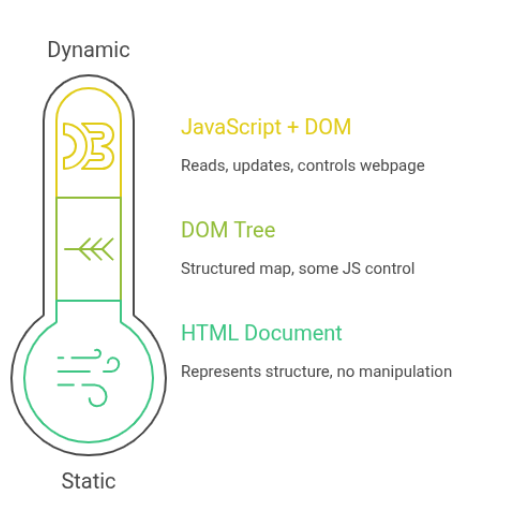
CSSOM (CSS Object Model)
The CSSOM is a tree structure that represents all CSS rules on the page, including:
External CSS files
<style> tags in HTML
Inline styles
Styles added or modified by JavaScript
Each CSS rule becomes a node in the CSSOM tree
👉 CSSOM = The browser’s internal model of your CSS styles
Why CSSOM Matters
CSSOM is important because:
It stores all CSS rules that affect the webpage.
It works together with the DOM to calculate final styles.
It decides how each element looks (color, size, position, etc.).
When CSS changes → CSSOM updates, and the browser may re-render the page.
Large or complex CSS slows down CSSOM building ⇒ slow rendering.
👉 CSSOM + DOM = Render Tree (what is actually drawn on screen)
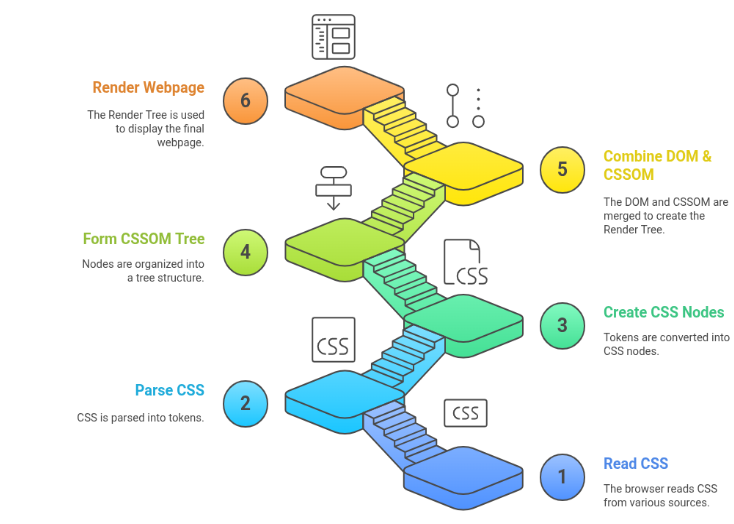
How CSSOM is Built (Simple Steps)
Browser reads CSS (external, inline, internal).
CSS is parsed into tokens.
Tokens become CSS nodes.
Nodes form a CSSOM tree.
Browser combines DOM + CSSOM → Render Tree.
What Triggers CSSOM Changes ?
Editing CSS in <style> tags
Changing styles using JavaScript
Dynamically loading a CSS file
Changing CSS variables
Each change can cause the browser to recalculate styles, which may trigger:
Reflow (layout change)
Repaint (visual change)
DOM = Structure of the page
(All elements, tags, and content)
CSSOM = Styling of the page
(All colors, layouts, fonts, and visual rules)
DOM + CSSOM = Final webpage you see
(The complete rendered page shown on your screen)
Network Basics: TCP/IP, Ports, HTTP/2 & HTTP/3
TCP/IP (Transport Protocols)
TCP (Transmission Control Protocol)
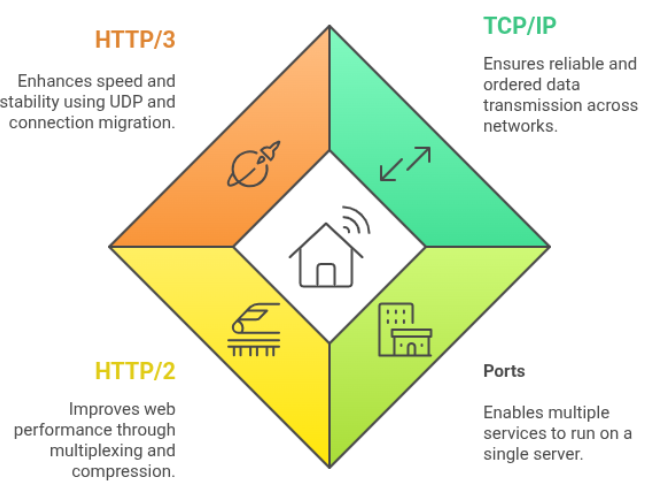
Ensures reliable delivery of packets
Maintains order (packets arrive in sequence)
Retransmits lost packets
IP (Internet Protocol)
Handles addressing and routing
Sends packets from one device to another
👉 TCP/IP = Foundation of all internet communication
🔹 Ports (Where Servers Listen)
Servers listen on specific port numbers.
Common ports:
Port 80 → HTTP
Port 443 → HTTPS
Ports allow multiple services on the same IP address:
Example: A server can run a website, database, and FTP all using different ports.
👉 Ports = Different doors on the same building
HTTP/2 (Faster Web Protocol)
Improvements over HTTP/1.1:
Multiplexing: multiple requests over one TCP connection
Header compression (smaller request size)
Server push: server can send resources before requested
Much faster and efficient than HTTP/1.1
👉 Enables quicker page loads and better performance.
HTTP/3 (QUIC Protocol – New & Faster)
Uses UDP instead of TCP
Lower latency (faster connection setup)
Connection migration: survives network changes
(e.g., switching WiFi → Mobile Data without losing connection)
More stable and faster for real-time apps
👉 HTTP/3 = Future of web performance.
TCP/IP → Moves data safely across the internet
Ports → Identify different services on one server
HTTP/2 → Faster because of multiplexing
HTTP/3 → Even faster using QUIC (UDP-based)
Caching (Browser & CDN)
Browser Cache (Local Caching)
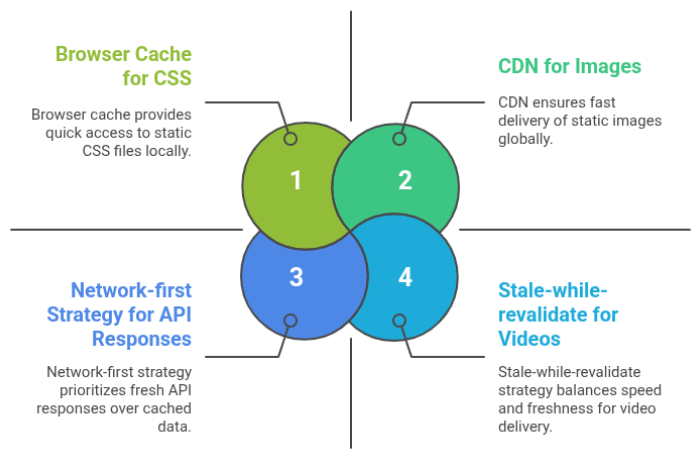
The browser cache stores files on the user’s device so they can load faster next time.
It helps reduce:
Network requests
Loading time
Server load
Controlled using headers:
Cache-Control
Expires
ETag
👉 Proper caching = Fewer round trips → Faster websites
CDN (Content Delivery Network)
A CDN stores copies of static resources on servers around the world.
When a user requests a file:
The request goes to the nearest edge server
This reduces latency and speeds up delivery
CDNs are usually used to serve:
Images
CSS
JavaScript
Fonts
Videos
👉 CDN = Your content delivered faster from nearby locations
Cache Strategies (Used in Service Workers)
Cache-first
Load from cache first
Network used only if not cached
Fastest for static content
Network-first
Try network first
Use cache only if offline
Useful for dynamic content (API responses)
Stale-while-revalidate
Show cached version immediately
Fetch updated version in background
Gives best balance of speed + freshness
👉 Used heavily in PWAs, service workers, and modern web apps.
Browser Cache = Local storage on the user’s device for faster repeat loading.
CDN (Content Delivery Network) = Nearby servers that deliver files quickly and reduce latency.
Cache Strategies = Smart rules that decide when to use cache and when to use the network.
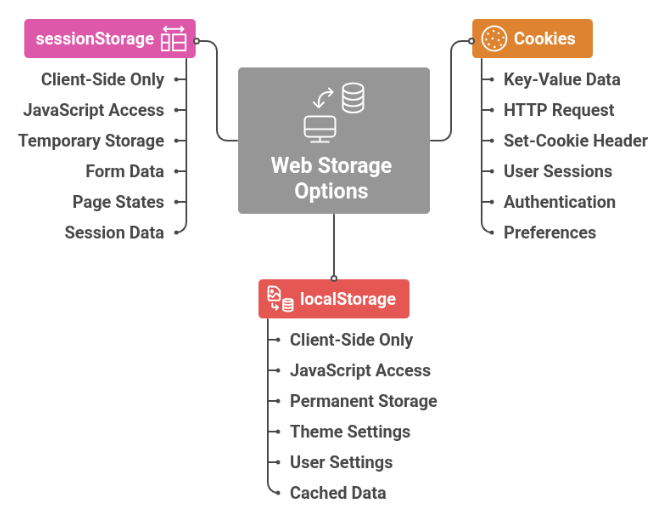
Cookies, localStorage, sessionStorage
Cookies
Small key–value pieces of data stored by the browser.
Automatically sent with every HTTP request to the same domain.
Controlled using the Set-Cookie response header.
Common uses:
User sessions
Authentication
Remembering preferences
👉 Cookies travel with every request, so they affect performance and security.
localStorage
Stored only on the browser (client-side).
Accessible via JavaScript: localStorage.setItem()
Persists permanently until manually cleared.
Not sent with any HTTP requests.
Good for:
Saving theme (dark/light mode)
Saving user settings
Saving cached data
👉 localStorage = Long-term browser storage.
sessionStorage
Also client-side and accessed via JavaScript.
Clears automatically when the tab or window is closed.
Not shared across tabs.
Useful for:
Temporary form data
Page-specific states
One-time session data
👉 sessionStorage = Temporary, tab-specific storage.
Security Note
Do not store sensitive tokens (like JWT access tokens) in localStorage unless you fully understand XSS risks.
For sensitive authentication tokens, prefer:
HttpOnly cookies (cannot be accessed by JS)
Secure and SameSite flags
👉 This helps protect users from attacks.
Cookies → Sent with every request; good for auth & sessions.
localStorage → Long-lasting, client-only storage.
sessionStorage → Temporary, tab-specific storage.