Python IDEs
-
Python can be written and executed in many different development environments, known as IDEs (Integrated Development Environments) and code editors. Each IDE offers unique features such as code suggestions, debugging tools, project management, and extensions that help developers write efficient and error-free Python programs
Where Do We Write Python Code?
Python programs can be written in:
1.Text editors
2.Code editors (VS Code, Sublime etc.)
3.IDEs (Integrated Development Environments)
4.Python’s built-in IDLE
5.Online editors and notebooks (Optional)
1.Using Python IDLE (Comes with Python)
What is IDLE?
IDLE stands for Integrated Development and Learning Environment
It is installed automatically when you install Python
Great for beginners
Features
Runs Python scripts
Syntax highlighting
Simple editor & console
No setup required
How to Open IDLE
Windows:
Search “IDLE” from Start Menu
Open IDLE (Python 3.x)
macOS:
Search in Applications
Open IDLE
Writing Python Code Using IDLE (Beginner Friendly)
Step 1: Open IDLE
Click on the Start Menu
Search for and select IDLE (Python 3.x)
Step 2: Create a New Python File
In the IDLE window, click File → New File
A new editor window will open
Step 3: Write Your Python Code
Type the following code in the editor:
print("Hello Python")
Step 4: Save the File
Click File → Save
Enter the file name as test.py
Choose a location on your computer and click Save
Step 5: Run the Program
Press F5 on the keyboard
The output will be displayed in the Python Shell
2.Writing Python Code in VS Code
What is VS Code?
VS Code (Visual Studio Code) is a powerful and free source-code editor created by Microsoft.
Why VS Code?
Easy to use
Works for small & large projects
Python extension available
Auto-completion, debugging, linting, etc.
Steps to Install & Set Up Python in VS Code
Step 1: Install Visual Studio Code
Download VS Code from the official website
Install it by following the on-screen instructions
Step 2: Install the Python Extension
Open VS Code
Click on the Extensions icon from the left sidebar
Search for Python
Install the Python extension by Microsoft
Step 3: Create a Python File
Create a new folder for your project
Open that folder in VS Code
Create a new file named hello.py
Add the following code:
print("Hello from VS Code!")
Step 4: Run the Program
Open the Terminal in VS Code
(View → Terminal)Run the command:
python hello.py
Or click the Run ▶ button at the top to execute the program
Extra Features
Code formatting
Error highlighting
Git integration
Virtual environment support
Step 4: Run the Program
Open the Terminal in VS Code
(View → Terminal)Run the command:
3.Using PyCharm (Professional Python IDE)
What is PyCharm?
A professional IDE developed by JetBrains.
Used by software developers for large Python applications.
Why Use PyCharm?
Best for large projects
Intelligent code suggestions
Built-in debugging
Project structure management
Steps to Use PyCharm
Download and install PyCharm from the official website
Open PyCharm and create a new project
Set up a virtual environment (auto-configured by PyCharm)
Create a Python file with the .py extension
Write your code and run it within the IDE
Best suited for professional development, industry-level projects, and large-scale applications
4.Writing Python Code in a Simple Text Editor (Notepad / Notepad++)
How It Works
Open Notepad (on Windows) or any basic text editor like Notepad++
Write your Python code in the editor
Save the file with a .py extension (for example: program.py)
Open Command Prompt / Terminal
Run the program using the command:
python program.py
Why use simple text editors?
Teaches how programs work without help from tools
Good for beginners learning fundamentals
Limitations
No debugging
No syntax highlights
No auto-complete
So recommended only for basic learning.
Examples
Google Colab
Jupyter Notebook
Replit
Programiz
OnlineGDB
GitHub Codespace
Why use them?
No installation required
Just open browser and start coding
Great for learning, data science, ML
Example: Jupyter Notebook (Data Science)
Which Editor Should Students Use?
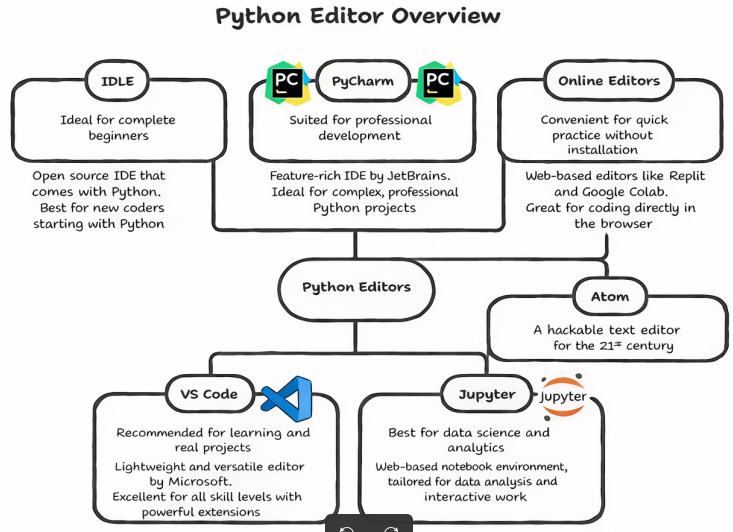
Writing Python Code – Editors and IDEs
To write and execute Python programs, you need a code editor or an IDE (Integrated Development Environment).
A code editor is used to write Python code, while an IDE offers extra features such as debugging, auto-completion, error checking, and project management.Python supports coding in multiple environments, depending on your needs:
IDLE (Integrated Development and Learning Environment)
Comes bundled with the Python installation
Simple interface with a built-in Python shell
Ideal for beginners learning Python step by step
VS Code (Visual Studio Code)
Free and powerful source-code editor
Supports Python using official extensions
Offers syntax highlighting, auto-completion, debugging, and an integrated terminal
Suitable for both beginners and professional developers
PyCharm
A full-featured professional Python IDE
Commonly used for large and complex projects
Includes advanced tools like testing support, version control, and intelligent code suggestions
Simple Text Editors (Notepad, Notepad++, Gedit, etc.)
Allow writing Python code without advanced features
Helpful for understanding basics
Less efficient for real-world development
Online Editors (Google Colab, Replit, Jupyter Notebooks)
No installation required
Run Python code directly in a web browser
Widely used for data science, practice, and online learning