CustomEase in GSAP
-
CustomEase allows you to create your own animation easing curve instead of using predefined eases like
power1,elastic, orbounce.
Why it matters
-
Gives pixel-perfect control over animation timing
-
Helps create premium UI animations
-
Used heavily in product showcases, micro-interactions, and hero animations
Real-world use cases
-
Smooth product reveal animations
-
Natural card or modal motion
-
Custom scroll-based animations
-
Brand-specific motion design
-
Detailed Explanation
What is Easing?
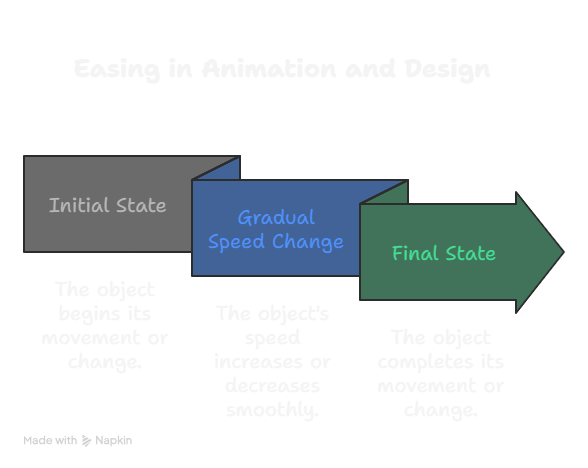
Easing controls how an animation progresses over time.
Example:
-
Linear → same speed
-
Ease-in → starts slow
-
Ease-out → ends slow
-
CustomEase → you decide everything
-
What is CustomEase?
CustomEase lets you define a Bezier curve that controls animation speed.
ease: "myCustomEase"
How CustomEase Works (Simple)
-
You draw a curve (usually using GSAP Ease Visualizer)
-
GSAP converts it into a path string
-
That string becomes your easing function
-
Installing
<script src="https://unpkg.com/gsap@3/dist/gsap.min.js"></script>
<script src="https://unpkg.com/gsap@3/dist/CustomEase.min.js"></script>
gsap.registerPlugin(CustomEase);
Example 1: Basic CustomEase
gsap.registerPlugin(CustomEase);

// Create a custom ease
CustomEase.create(
  "smoothEase",
  "M0,0 C0.2,0 0.3,1 1,1"
);

// Use it in animation
gsap.to(".box", {
  x: 300,
  duration: 1.5,
  ease: "smoothEase"
});
Real-World Button Hover Animation
CustomEase.create(
  "buttonEase",
  "M0,0 C0.1,0.6 0.3,1 1,1"
);

const btn = document.querySelector(".btn");

btn.addEventListener("mouseenter", () => {
  gsap.to(btn, {
    scale: 1.1,
    duration: 0.4,
    ease: "buttonEase"
  });
});

btn.addEventListener("mouseleave", () => {
  gsap.to(btn, {
    scale: 1,
    duration: 0.3,
    ease: "buttonEase"
  });
});
Best Practices
✅ Do:
-
Use CustomEase for important UI animations
-
Reuse easing names across animations
-
Test on slow devices
❌ Don’t:
-
Overuse custom eases everywhere
-
Make curves too sharp
-
Use CustomEase when
powereases are enough
-